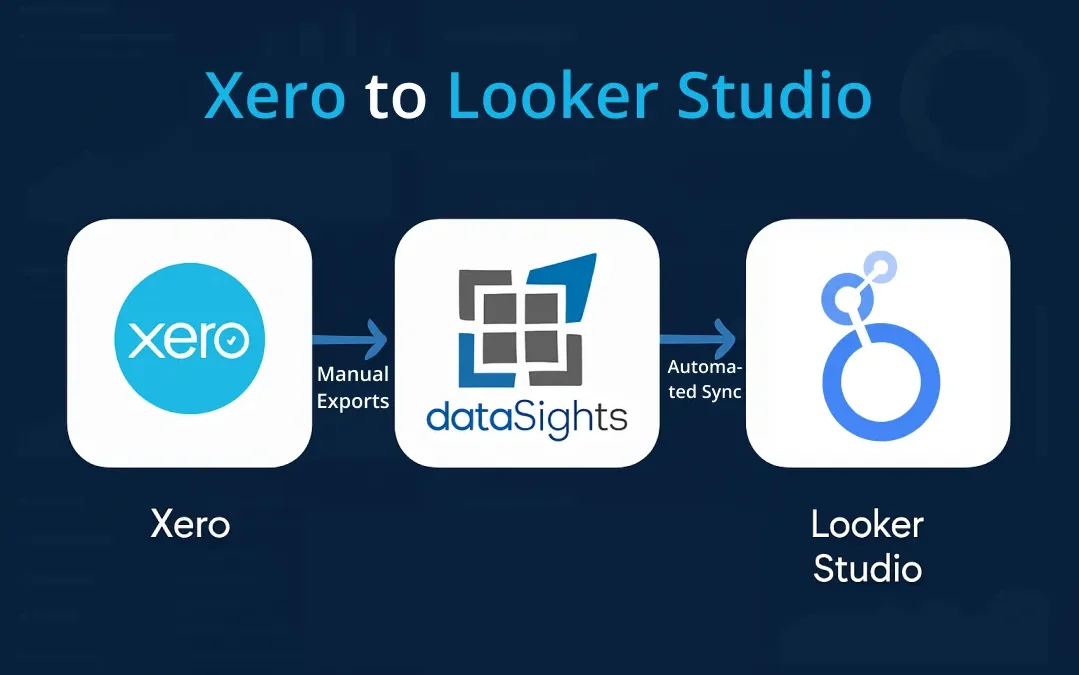
Ever wondered why your Xero financial data seems trapped inside your accounting software while your team builds dashboards in Looker Studio? You’re not alone. Finance teams across the UK, Australia, and New Zealand face this exact challenge every month-end. The gap between Xero’s accounting capabilities and Looker Studio’s visualisation power creates friction that slows down reporting and decision-making. This Xero to Looker Studio guide walks you through every method for connecting your financial data, from quick manual exports to automated SQL-based solutions that scale across multiple entities.
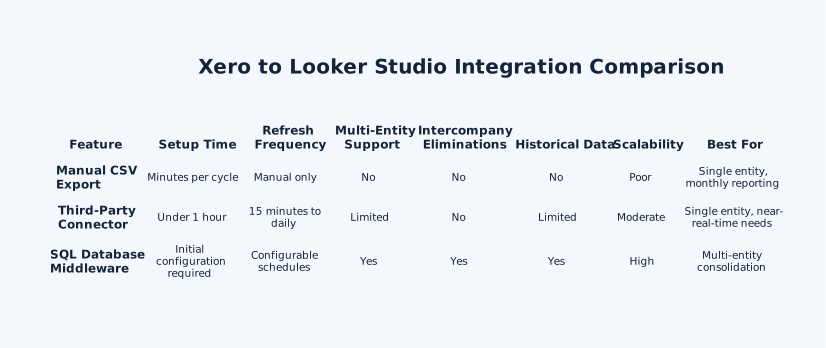
Xero to Looker Studio integration typically needs a bridge because Looker Studio relies on built-in file/database connectors and partner connectors (1300+), rather than a Google-built Xero connector. Most teams use manual CSV exports, a third-party connector, or sync Xero into a SQL reporting database that Looker Studio can query. For multi-entity reporting, the SQL approach is usually the most reliable because it supports cross-entity joins and consolidation adjustments (like eliminations) before dashboards refresh on a schedule.
Connecting Xero to Looker Studio requires middleware since no native connector exists, but the method you choose shapes whether you spend time moving data or analysing it. Single-entity businesses can start with connector tools, while multi-entity groups benefit from SQL database architecture that handles consolidation, eliminations, and currency conversions automatically. The right infrastructure transforms scattered financial data into actionable insights that scale with your organisation.
Why Connect Xero to Looker Studio?
Xero excels at entity-level accounting but falls short when you need custom visualisations or cross-business analysis. Looker Studio offers free, interactive dashboards with over 1,300 partner connectors that transform static financial exports into dynamic reports your team can actually use.
The combination delivers capabilities neither platform offers alone. You can:
- Track revenue trends across multiple Xero organisations
- Compare budget versus actuals with scheduled refreshes
- Monitor cash flow with drill-down capabilities
- Share automated reports with stakeholders who don’t need Xero access
For finance teams managing multiple entities, this connection becomes essential. Rather than exporting data from each Xero organisation separately and consolidating in Excel, you can build unified dashboards that refresh automatically and present group-level insights without manual intervention.
The Core Challenge: No Native Connector Exists
A key limitation is that Looker Studio doesn’t include a Google-built connector specifically for Xero. In practice, teams get Xero data into Looker Studio by:
(1) Uploading exported files
(2) Using a partner/community connector, or
(3) Syncing Xero into a database that Looker Studio can query
This matters because it affects how you approach the integration. Direct Xero API access in Looker Studio typically requires an intermediary because Looker Studio ingests data through connectors (Google-provided, partner, or community connectors) rather than calling arbitrary APIs directly. The intermediary you choose affects freshness and automation (via connector/data-source freshness rules and scheduled extract updates) and also impacts multi-entity consolidation, since Looker Studio blending has practical limits (e.g., up to five tables per blend), making upstream consolidation in a database/warehouse the more scalable option.
Method 1: Manual CSV Export and Import
The most basic approach involves exporting data from Xero as CSV files and importing them into Google Sheets, which Looker Studio can then read.
How the Manual Process Works
- Navigate to Accounting > Reports in Xero
- Select your required report (P&L, Balance Sheet, Account Transactions)
- Apply filters and click Update to preview
- Export using the button at the bottom-right corner
- Import the CSV to Google Sheets
- Connect Google Sheets to Looker Studio as a data source
Tip: Choose (and stick to) the same basis (cash vs accrual) and date cut-off each period so your dashboard trends don’t “shift” month to month.
Manual Export Limitations
This method costs nothing but demands ongoing effort. If you’re refreshing via manual Xero exports + Looker Studio File Upload, each update requires exporting a new CSV from Xero and uploading it into the Looker Studio dataset (and deleting the prior upload if you want to “replace” rather than append). If Xero changes column names, order, or data types, Looker Studio may need a field refresh or reconnection – and you may have to fix charts affected by the schema change.
Key limitations include:
- Xero cannot export all organisation data at once
- Each entity requires separate exports
- Files need formatting before Looker Studio can use them
- Manual data handling increases error risk
- Copy-paste mistakes and missed cleanup steps are common
For single-entity businesses with monthly reporting needs, this approach might work. For anyone else, the time investment rarely justifies the cost savings.
Method 2: Third-Party Connector Tools
Several platforms offer automated connections between Xero and Looker Studio. These tools handle OAuth authentication, scheduled data refreshes, and basic data transformation without requiring technical skills.
What Connector Tools Provide
Third-party connectors typically offer:
- No-code setup processes that connect in minutes
- Scheduled data refreshes from 15-minute to daily intervals
- Pre-built templates for common financial dashboards
- Ability to combine Xero data with other sources like Google Ads or CRM systems
Connector Tool Considerations
While simpler than building custom integrations, these tools have important limitations for finance teams:
- Most operate on per-source or volume-based pricing
- Refresh intervals range from 15 to 30 minutes, not real-time
- Basic connectors transfer data entity-by-entity without true consolidation
- They don’t perform intercompany eliminations or currency conversions
- Reconciliation work remains manual
If you manage a single Xero organisation and need straightforward visualisations, connector tools provide a reasonable middle ground. If you need consolidated group reporting across multiple entities, you’ll hit limitations quickly.
Method 3: API-Based Custom Development
For technically capable teams, the Xero API allows custom integrations using Google Apps Script or similar tools. This approach provides maximum flexibility but requires significant development effort.
Technical Requirements
Building a custom API integration involves:
- Preparing Xero API credentials
- Obtaining OAuth access tokens
- Writing scripts in Google Apps Script to extract data
- Handling pagination for large datasets
- Managing token refresh logic
- Building error handling for API failures
Xero’s OAuth 2.0 API rate limits are typically 60 calls per minute per tenant, with a daily limit of 5,000 calls per tenant (some tiers, such as Starter, have a 1,000/day limit). There’s also a concurrent request cap, so high-frequency refreshes (especially across multiple entities) need batching and scheduled sync windows.
Why Custom Development Often Falls Short
Even well-built custom integrations face fundamental challenges:
- Looker Studio connects via connectors; API-based sources require a connector layer (partner/community) rather than a native ‘direct API’ hookup.
- You still need an intermediary landing layer (e.g., a connector, a database/warehouse, or Sheets) to make the data available as a Looker Studio data source.
- Xero’s per-tenant minute/day limits constrain how often you can poll for updates – so ‘near real-time’ pulls across many orgs can hit ceilings fast.
- Each Xero organisation is a separate tenant connection you must manage (tenant context, permissions, and connection limits).
- OAuth token expiry/rotation requires ongoing handling (refresh workflows, retries, and reauthorisation when refresh tokens lapse).
- Looker Studio blending is limited (e.g., up to five tables per blend), which is one reason teams push multi-entity consolidation logic upstream rather than inside the report.
For multi-entity groups, maintaining custom scripts across dozens of organisations becomes a significant burden.
Method 4: SQL Database Middleware
The most robust approach stages Xero data in a SQL database before connecting to Looker Studio. This architecture provides capabilities that direct connectors cannot match.
How SQL Middleware Works
The data flow operates as follows:
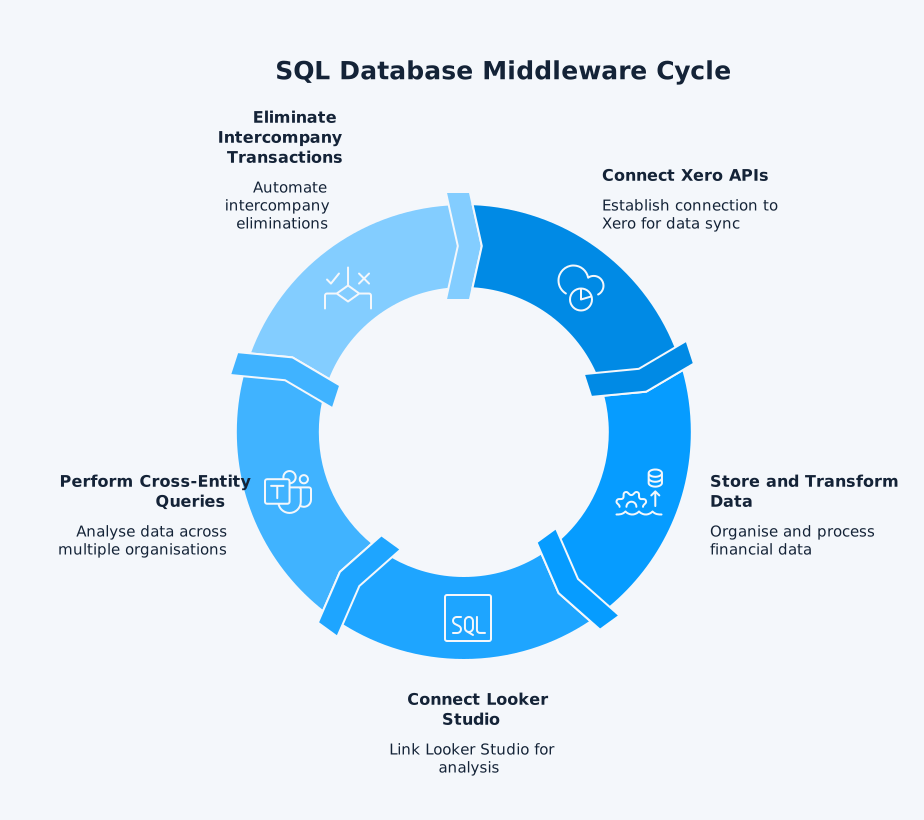
- Xero APIs connect to a cloud SQL database through automated sync processes
- The database stores and transforms your financial data
- Looker Studio connects to the database using standard SQL connectors
This architecture enables cross-entity queries through SQL joins, something impossible when connecting Xero directly to Looker Studio. You can write queries that span multiple organisations, perform calculations across entities, and deliver consolidated results without manual consolidation steps.
SQL Database Advantages
A dedicated reporting database eliminates API rate limit constraints during analysis. Once data syncs to your database, you can query it as often as needed without hitting Xero’s limits.
Key advantages include:
- No API limits during reporting: Query your database unlimited times
- Historical data retention: Archive snapshots for trend analysis and audits
- Complex transformations: Standardise charts of accounts and apply currency conversions at the database layer
- Cross-entity queries: Join data from multiple organisations in a single query
- Automatic eliminations: Process intercompany transactions without manual intervention
For multi-entity consolidation, SQL middleware enables automatic intercompany eliminations, standardised reporting hierarchies, and the ability to slice data by any dimension your business requires.
Worked Example: Two-Entity Group Dashboard in Looker Studio
Scenario: A group has two Xero organisations (Entity A and Entity B). Leaders want one Looker Studio dashboard that shows Consolidated results, with the option to filter to each entity.
How the data flows (reliable setup):
- Sync Xero data into one reporting database on a schedule (e.g., hourly/daily).
- Standardise accounts by mapping each entity’s chart of accounts into one reporting structure (so “Sales”, “COGS”, “Payroll” are consistent).
- Apply consolidation logic in the reporting layer before the dashboard, including:
- Eliminating intercompany revenue/COGS so consolidated revenue reflects only external sales
- Eliminating intercompany receivables/payables so assets/liabilities aren’t overstated
- Connect Looker Studio to the reporting database and build visuals from the cleaned, consolidated dataset.
What the dashboard shows (typical pages):
- A Consolidated Summary (P&L, balance sheet, cash movement)
- An Entity filter (Entity A / Entity B / Consolidated)
- A Reconciliation view that flags outstanding intercompany differences to clear before close
Why this works: The “hard stuff” (standardisation + eliminations) happens before Looker Studio, so the report refreshes predictably, stays consistent across entities, and is easier to audit.
Multi-Entity Xero Reporting: The Real Challenge
Single-entity Xero users have straightforward options for Looker Studio integration. The challenge intensifies dramatically when you manage multiple Xero organisations.
Why Multi-Entity Reporting Is Different
Each legal entity requires its own Xero subscription. Xero offers no native consolidation features. You can’t get group-wide consolidated insights directly in Xero without an external reporting/consolidation layer.
The typical manual consolidation workflow involves:
- Exporting P&L, Balance Sheet, and Cash Flow from each entity
- Consolidating data manually in Excel
- Performing intercompany eliminations by hand
- Reconciling to ensure accuracy
- Repeating the entire process when numbers change
For a 20-entity group, this process consumes hours on data extraction, days on reconciliation, and potentially weeks on eliminations and adjustments.
Industry benchmarking shows a wide spread in close performance: the slower quartile can take 10+ business days, while top performers close in ~5 days or less (median ~6.4 days). With more manual processes, the close is harder to compress, and “leading company” targets are often under seven, five, or even four days. Multi-entity consolidation adds work because group reporting requires intercompany reconciliation and eliminations plus policy alignment adjustments, and late period changes can trigger additional adjusting work before the consolidated view is final.
What True Consolidation Requires
Effective multi-entity reporting demands more than data transfer:
- Intercompany transaction elimination: Intra-group sales must not inflate revenue
- Currency translation: Apply consistent rates for P&L versus Balance Sheet items
- Ownership adjustments: Partially-owned subsidiaries require proper NCI calculations
- Reconciliation checks: Balance sheets must balance across the group
Basic connector tools move data from point A to point B but don’t perform these calculations. They’re data pipes, not consolidation engines.
Building Effective Looker Studio Dashboards
Once your Xero data reaches Looker Studio through any method, you can create visualisations that transform how your team understands financial performance.
Essential Financial Metrics to Track
Effective financial dashboards typically include:
- Revenue trends with period-over-period comparisons
- Expense tracking by category and cost centre
- Cash flow monitoring with forecasting elements
- Accounts receivable aging and collection performance
- Accounts payable timing and vendor analysis
- Budget versus actual variance highlighting
Visualisation Best Practices
Looker Studio’s drag-and-drop interface makes creating charts straightforward, but financial dashboards require thoughtful design.
Chart selection guidelines:
- Time series charts: Use for revenue, expense, and cash flow trends
- Scorecards: Display KPIs that need immediate attention
- Tables: Show detailed transaction analysis and drill-downs
- Bar charts: Compare categories like departments or cost centres
Interactive filters allow stakeholders to explore data without requesting new reports. Add date range controls, entity selectors (for multi-organisation setups), and department filters so users can answer their own questions.
Consider your audience when designing layouts. Executive dashboards need high-level summaries with drill-down options. Operational dashboards benefit from more granular transaction visibility.
The dataSights Approach to Xero and Looker Studio
dataSights is built for multi-entity Xero consolidation and management reporting. Finance teams can generate web-based, customisable management reports, and BI teams can optionally use a dedicated Azure SQL reporting database as a single source of truth for tools like:
- Looker Studio
- Power BI, or
- Excel automation
How dataSights Works
The platform syncs data from multiple Xero entities via API into a dedicated Azure SQL database for each customer. This database contains production-ready SQL views, including Account Transactions, Trial Balance, and consolidated reports.
From this foundation, you can connect any BI tool:
- Looker Studio: Standard database connectors
- Power BI: Import or DirectQuery mode
- Excel: Power Query with automated refresh
- Google Sheets: Direct data feeds
Beyond Basic Data Transfer
The SQL database approach enables capabilities that direct connectors cannot provide:
- Cross-entity queries become simple SQL joins
- Intercompany eliminations process automatically based on configured rules
- Multi-currency conversions apply using appropriate rates
- Historical snapshots support period comparisons and audit requirements
- Custom business logic applies at the database layer
For teams currently using Looker Studio, dataSights provides the data infrastructure that makes your dashboards actually useful for consolidated reporting. Rather than building separate dashboards per entity, you can create unified views across your entire organisation.
Flexibility Across Reporting Tools
dataSights doesn’t lock you into a single BI platform. The same SQL database that feeds Looker Studio also powers:
- Excel models through Power Query
- Power BI dashboards with scheduled refresh
- Custom reports through direct SQL access
- Google Sheets for lightweight sharing
This flexibility matters because different stakeholders prefer different tools. Finance teams often work in Excel. Executives might prefer Power BI. Operations teams could use Looker Studio. A centralised data layer serves all these needs without duplicating integration work.
Choosing the Right Integration Method
Your optimal approach depends on several factors specific to your organisation.
When Manual Exports Work
Manual CSV exports suit specific situations:
- Single-entity businesses with monthly reporting cycles
- Teams with technical staff available for repetitive tasks
- Simple, infrequent reporting needs
- Scenarios where cost savings justify the time investment
When Connector Tools Fit
Third-party connectors work well for:
- Single-entity setups needing more automation than manual exports
- Businesses requiring near-real-time data without multi-entity complexity
- Teams wanting a quick setup without technical resources
- Organisations with straightforward visualisation requirements
When SQL Middleware Becomes Essential
A SQL database approach becomes necessary when you:
- Manage multiple Xero organisations requiring consolidation
- Need cross-entity queries and comparisons
- Require historical data retention beyond Xero’s capabilities
- Want to connect multiple BI tools to the same data source
- Need intercompany eliminations and currency conversions
- Must support audit requirements with historical snapshots